Copy as you always do.
Give explicit recording consent, then keep working. Recent copies stay locally on your Mac. Pause whenever you need to.
 ClipSwitch
Meet your Clip Switcher.
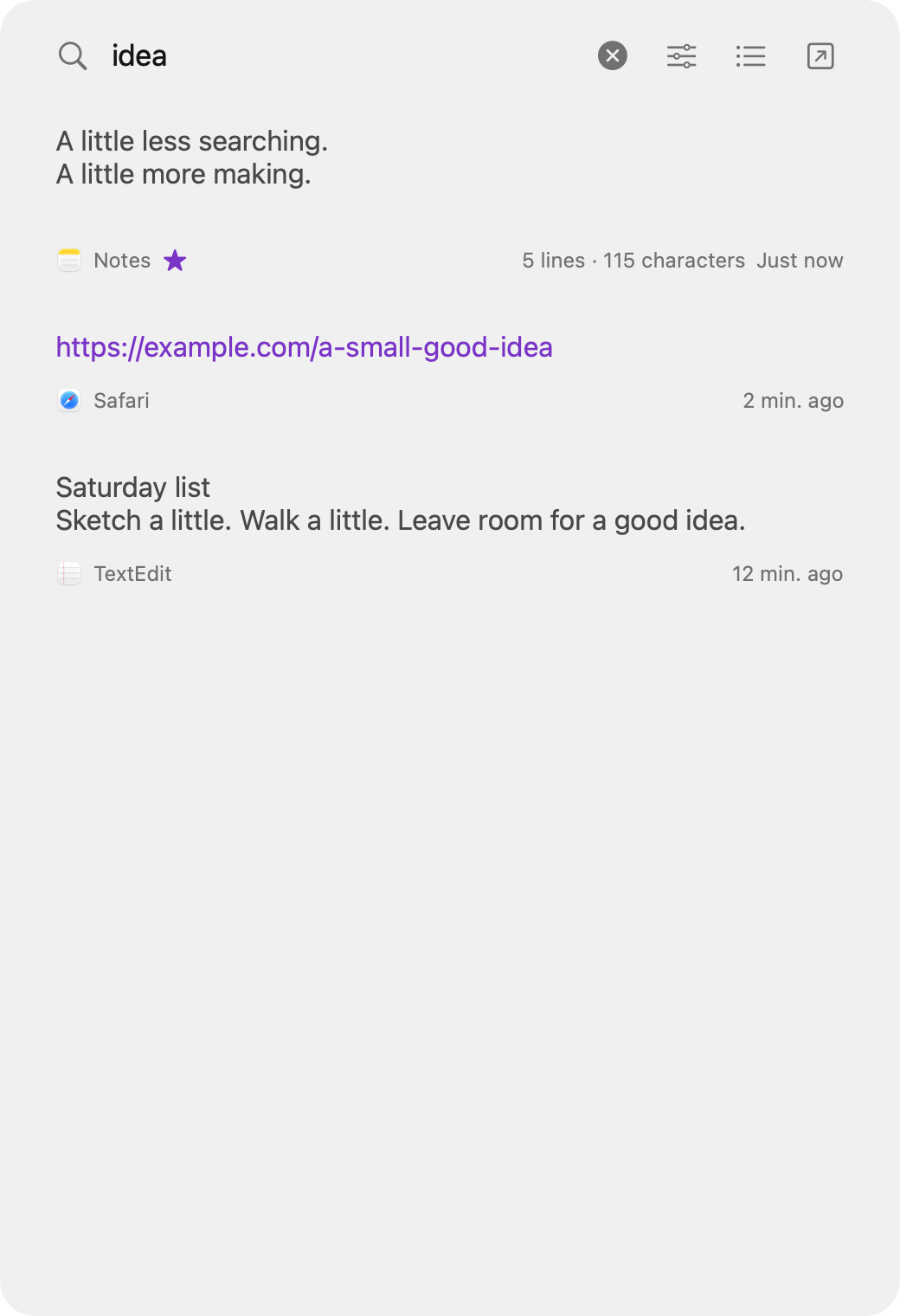
A quick search. A familiar clipping. Back to work. Find the text, links, images and file references you copied in a quiet, transient native panel.
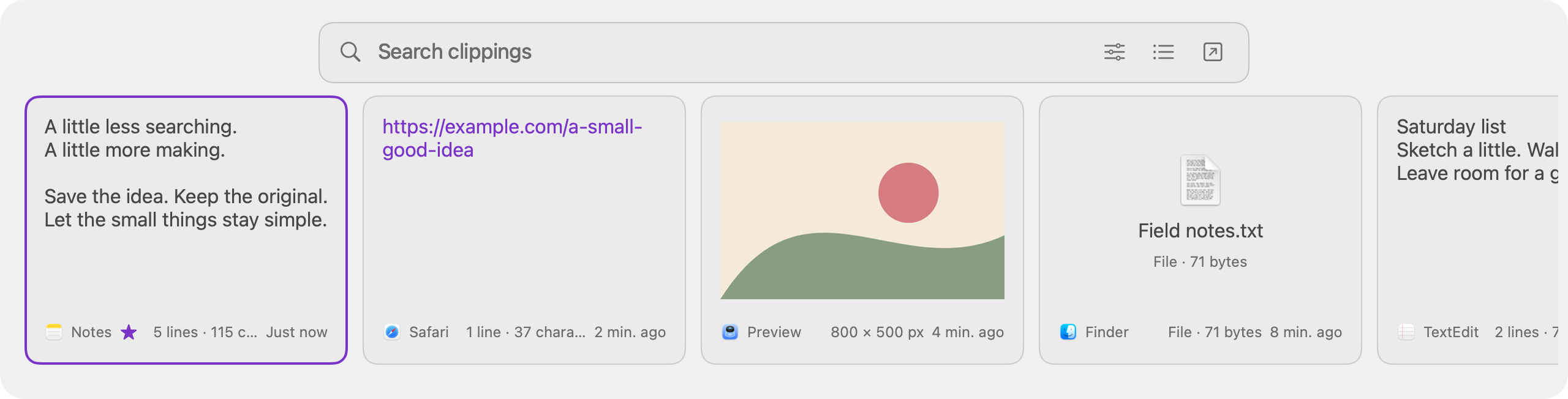
Across the top. Along the bottom.
Drag the Clip Switcher to any of the four screen edges. At the top or bottom, one horizontal lane keeps text, links, images and file references side by side.
Give explicit recording consent, then keep working. Recent copies stay locally on your Mac. Pause whenever you need to.
Use your configured shortcut to open the Clip Switcher by default. Search your history and preview a clipping before restoring it.
Restore a clipping, then paste using your operating system’s standard paste shortcut. ClipSwitch never pastes into another app for you.
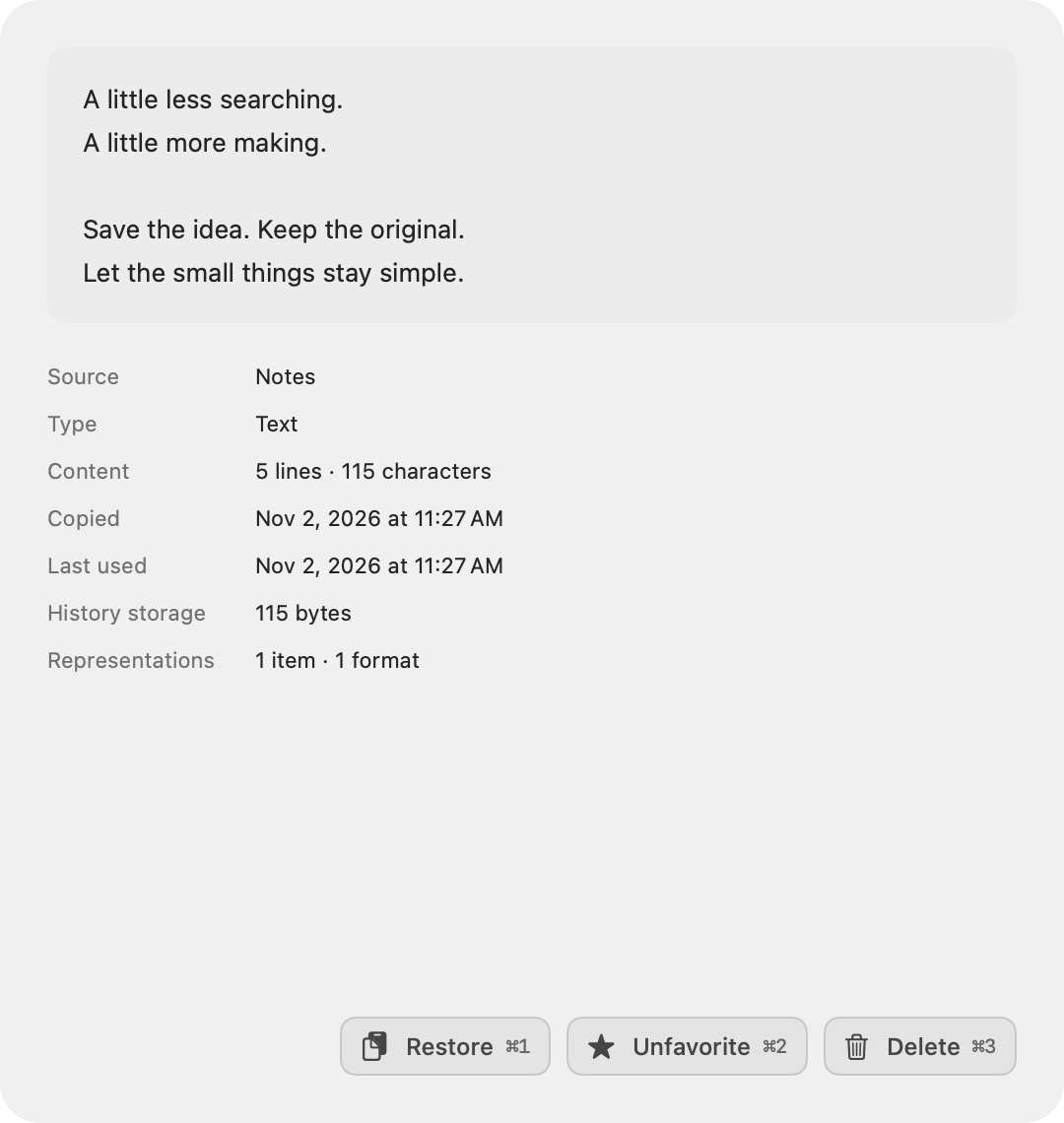
A closer look, on demand.
Open a clipping in its own preview to see the full content. Close it to return to your list. Your list stays a list.
Your history stays on your Mac. No cloud sync, no automatic fetching of copied links. Recognized passwords are ignored by default; optional saving supports encryption. Other history and metadata are not encrypted.
Read the privacy details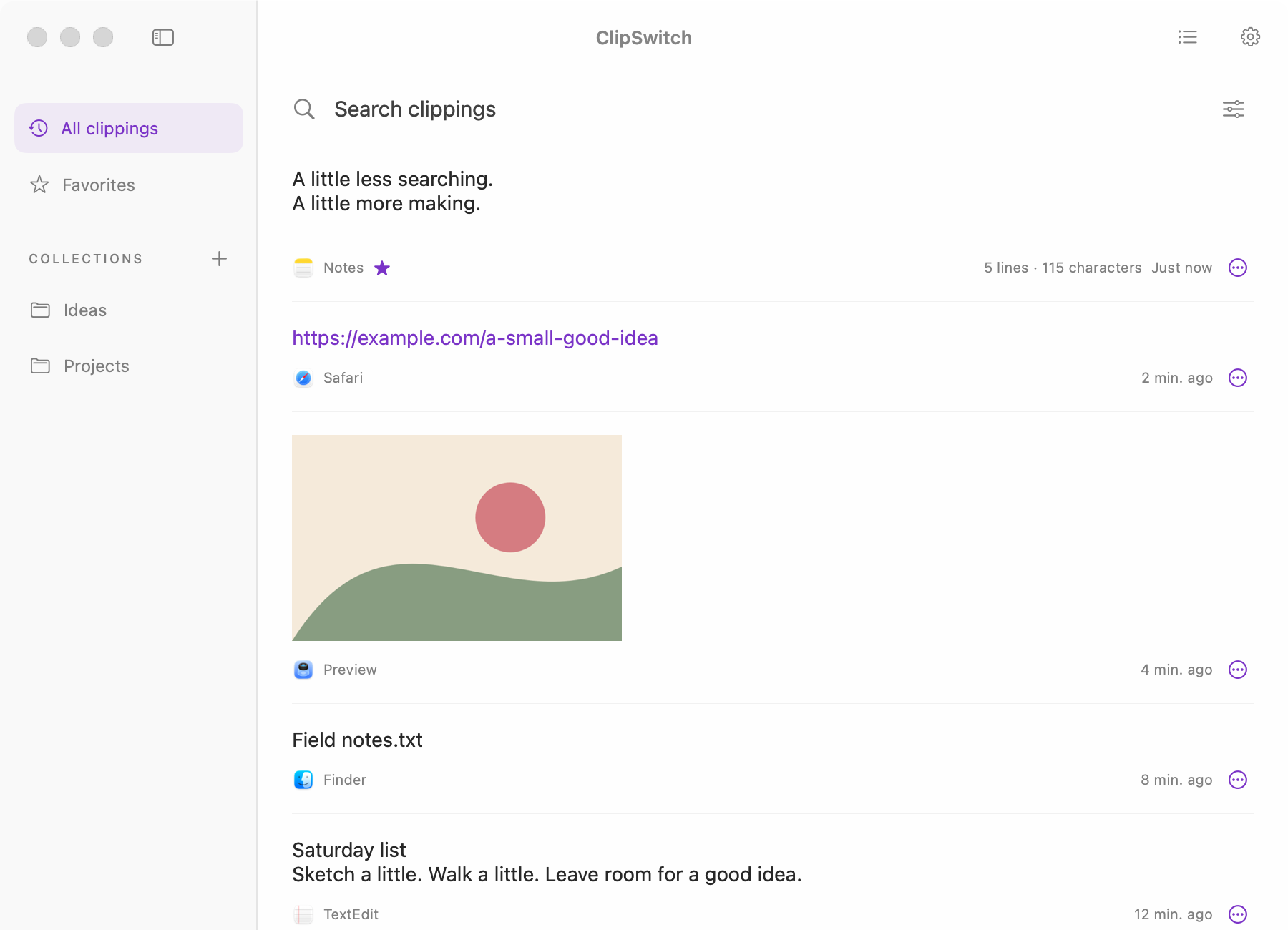
Two interfaces. One local history.
Keep the Main window open when it’s time to organize. Review your history, delete what you no longer need, and use Pro favorites and collections to keep important clippings together.
Prefer a persistent window? Settings lets you choose whether the activation shortcut and reopening the app bring up the Clip Switcher or the Main window. The menu-bar Show ClipSwitch action always opens the Main window. Its sidebar remembers whether you left it expanded or collapsed.
Find your way aroundA little more room.
Free keeps up to five clippings for up to seven days since their last copy or successful use, with search and previews in both interfaces. A one-time Pro unlock adds more room, flexible retention, favorites, collections and extra accent colors. Purple accents shown require Pro.